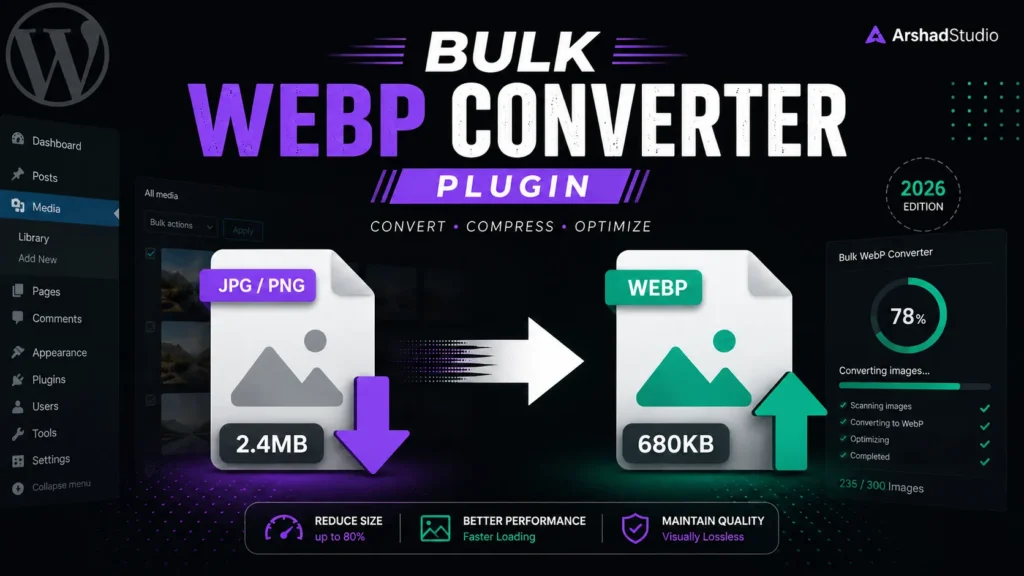
If your WordPress site is still serving JPG and PNG images to every visitor in 2026, you are leaving significant page speed improvements on the table — and Google knows it. Converting images to WebP delivers 25–35% smaller file sizes compared to JPG and PNG with no visible quality loss, making it the single highest-impact image optimisation you can apply to a WordPress site. Smaller images mean faster page loads, better Core Web Vitals scores, and higher search rankings.
The problem most WordPress site owners face is not knowing WebP matters — it is doing something about the hundreds or thousands of existing JPG and PNG images already sitting in their Media Library. Converting them one by one is not a realistic option. What you need is bulk conversion — and that is exactly what I built.
ArshadStudio Bulk Image Converter to WebP is a free plugin I developed and published on WordPress.org that converts your entire Media Library of JPG or PNG images to genuine WebP files in a few clicks — directly from your WordPress dashboard, with no external service, no API key, and no per-image fees. This post covers why WebP matters in 2026, exactly how the plugin works, and how to use it on your site today.
Why WebP Matters for Your WordPress Site in 2026
WebP is a modern image format developed by Google that uses superior compression to deliver significantly smaller file sizes than JPG and PNG — at equivalent or better visual quality. In 2026, WebP has become the default image format of the modern web, with universal browser support across Chrome, Firefox, Safari, Edge, and Opera.
The performance impact is direct and measurable:
- Faster Largest Contentful Paint (LCP): Image optimisation in WebP format yields the most rapid and most dramatic improvement in Core Web Vitals scores, especially for ecommerce and media-intensive sites. LCP — how fast your largest visible content element loads — is directly improved when your hero images and featured images are 25–35% smaller.
- Reduced page weight: Images typically account for the majority of total page weight on WordPress sites. Converting a Media Library of 500 JPG images to WebP can reduce total image weight by hundreds of megabytes — savings that compound across every page load on your site.
- Better Google rankings: Google’s Core Web Vitals remain a confirmed ranking factor in 2026 enforced across both mobile and desktop. A site that passes Core Web Vitals — including fast LCP driven by optimised images — has a measurable ranking advantage over a site that does not.
- Lower bandwidth costs: Smaller images mean less data transferred on every page request — which reduces hosting bandwidth usage and delivers a faster experience to visitors on mobile connections.
WebP encodes 5–10x faster than AVIF, has slightly broader browser support, handles animation more reliably, and is supported by every major CMS and image library — making it the workhorse format for production WordPress sites in 2026.
Introducing ArshadStudio Bulk Image Converter to WebP
I built this plugin to solve a problem I encountered repeatedly on client WordPress sites: large Media Libraries full of JPG and PNG images that needed converting to WebP without a cloud service, without a monthly subscription, and without a conversion limit. Every existing solution either required an API key, charged per image, or had a monthly quota that made bulk conversion of large libraries expensive.
ArshadStudio Bulk Image Converter to WebP does the conversion entirely on your server — using the Imagick or GD PHP extensions that your hosting environment already provides — with no external dependencies, no account required, and no ongoing cost. It is completely free and available on WordPress.org.
→ Download ArshadStudio Bulk Image Converter to WebP on WordPress.org
Key Features
- Genuine pixel-level re-encoding: The plugin does not rename file extensions. It performs real WebP conversion using the Imagick extension (preferred for best quality) or GD extension — the same PHP image libraries your server already uses for WordPress image processing.
- WebP signature verification: Every converted file is verified against the RIFF/WEBP binary signature before it is accepted. If the output is not a genuine WebP container, it is reported as failed — not silently saved as a corrupted file.
- Bulk conversion with a live progress bar: Convert your entire JPG or PNG Media Library in one session. A live progress bar shows the conversion status of every image, with the percentage of file size saved displayed per image.
- Adjustable quality setting: A quality slider (40–100) lets you balance file size reduction against visual quality for your specific use case. The default of 80 is the recommended starting point for most sites.
- Optional original deletion: After successful conversion, the plugin can optionally delete the original JPG or PNG file and update the Media Library attachment to point to the new WebP file — keeping your library clean and consistent.
- AJAX-based one-image-per- request architecture: Each image is converted in a separate AJAX request, which means large libraries never hit PHP execution time limits — regardless of how many images you have.
- Automatic engine detection: The plugin detects whether your server has Imagick or GD available and uses the best option automatically. If neither is available, a clear admin notice explains what your host needs to enable.
- Requires no external service: No API key. No cloud upload. No monthly quota. Conversion happens entirely on your server using PHP extensions already installed.
How It Works: Step by Step
The plugin adds a WebP Converter menu item to your WordPress dashboard. The conversion process takes three steps:
Step 1 — Choose Your Conversion Type and Quality
Open the WebP Converter screen from your dashboard menu. Choose whether you want to convert JPG to WebP or PNG to WebP using the radio buttons, then set your desired quality level using the slider. Quality 80 is the default and works well for most sites — it delivers meaningful file size reduction with no visible degradation on standard screen sizes.
Click Check / List Images to scan your Media Library. The plugin queries WordPress for all attachments matching the selected format and displays the count.
Step 2 — Preview the Images Found
The plugin displays every matching image in your Media Library with its thumbnail, filename, and current file size. This gives you a clear view of exactly what will be converted before you commit to the process — there are no surprises.
Step 3 — Convert
On the Convert step, you have one configuration option: whether to delete the original image after each successful conversion. This is unchecked by default.
- Delete originals unchecked (default): A new
.webpfile is created alongside the original in your uploads directory. The original JPG or PNG is kept. This is the safe option for first-time use — you can verify the results before committing to permanent deletion. - Delete originals checked: After each successful conversion, the original file is permanently deleted. The Media Library attachment is updated to point to the new WebP file, the MIME type is updated to
image/webp, and attachment metadata is regenerated — keeping your Media Library fully consistent. A confirmation prompt warns you that this action cannot be undone.
Click Start Conversion. The plugin converts one image per AJAX request, updating the progress bar and marking each thumbnail with the percentage saved or a failure indicator. When complete, a summary shows the total converted, the total failed, and whether originals were deleted.
Technical Details for Developers
If you are a developer or technical site owner curious about how the plugin works under the hood, here is a brief overview of the architecture:
Engine Detection
The plugin checks for Imagick first — it prefers Imagick because it supports more advanced WebP compression options including the webp:method setting which controls the compression algorithm (set to 6 for best compression). If Imagick is not available or does not support WebP, it falls back to GD’s imagewebp() function. If neither is available, an admin notice is displayed explaining exactly what the server needs.
WebP Signature Verification
After every conversion, the plugin reads the first 12 bytes of the output file and verifies the RIFF/WEBP binary signature. A genuine WebP container always begins with the ASCII bytes RIFF at offset 0 and WEBP at offset 8. If the signature does not match, the conversion is reported as failed — ensuring that only real WebP files are accepted as successful output.
read_file_header( $file, 12 );
    if ( false === $contents
        || strlen( $contents ) < 12 ) {
        return false;
    }
    return (
        'RIFF' === substr( $contents, 0, 4 )
        && 'WEBP' === substr( $contents, 8, 4 )
    );
}
Media Library Consistency
When delete originals is enabled, the plugin does not simply delete the file and leave the Media Library pointing at a missing attachment. It performs a full update:
- Deletes the original file using WordPress’s
wp_delete_file() - Updates the attached file path with
update_attached_file() - Updates the post MIME type to
image/webpviawp_update_post() - Regenerates attachment metadata with
wp_generate_attachment_metadata()and saves it withwp_update_attachment_metadata()
This means the Media Library entry continues to work correctly after deletion — thumbnails, full-size images, and all registered image sizes point to the correct WebP file.
Security
The plugin follows WordPress security standards throughout:
- All AJAX endpoints verify a nonce with
check_ajax_referer() - All endpoints check
current_user_can( 'manage_options' )before processing - All user input is sanitised —
sanitize_key()for the conversion type,absint()for attachment IDs and quality values - Quality is clamped between 40 and 100 server-side regardless of what the client sends
- All output values are escaped before rendering
Server Requirements
- WordPress: 5.0 or higher
- PHP: 7.2 or higher
- Image engine: Either the Imagick PHP extension with WebP support (recommended), or the GD extension with the
imagewebp()function
Most managed WordPress hosts — including Kinsta, WP Engine, Cloudways, and SiteGround — provide Imagick with WebP support as standard in 2026. If you are on shared hosting and the plugin shows a “no WebP-capable engine” notice, contact your host and ask them to enable the Imagick extension with WebP support, or the GD extension with WebP.
Frequently Asked Questions
Does the plugin actually re-encode images, or just rename them?
It performs real pixel-level conversion. The source image is decoded and re-encoded using the WebP codec via Imagick or GD. The output is then verified against the RIFF/WEBP binary signature. Files that are not genuine WebP images are reported as failed — a renamed JPG with a .webp extension would fail this check immediately.
Will my original images be deleted?
Only if you explicitly check the “Delete the original after conversion” option and confirm the warning prompt. By default, originals are kept and the WebP file is created alongside them in your uploads directory.
Will converted images be served to visitors automatically?
If you use the delete originals option, the Media Library attachment is updated to point to the WebP file — so any image inserted into posts and pages will serve the WebP version to all browsers. If you keep originals, the WebP files are created on disk but serving them requires either updating your images manually or configuring server rewrite rules to serve WebP to supporting browsers with a JPG/PNG fallback.
Can I convert both JPG and PNG in the same session?
The current version converts one format at a time — JPG or PNG. Run the tool twice to convert both formats: once with JPG to WebP selected, then again with PNG to WebP selected.
What happens if a conversion fails?
Failed images are clearly marked in the progress view with a failure indicator. The original file is never deleted if the conversion fails — only successfully converted and verified images trigger the optional deletion step. The final summary shows how many conversions succeeded and how many failed.
How to Install
- Go to your WordPress Dashboard → Plugins → Add New
- Search for “ArshadStudio Bulk Image Converter WebP”
- Click Install Now then Activate
- Open the WebP Converter menu item in your dashboard sidebar
- Choose your conversion type, set quality, click Check / List Images, and convert
Alternatively, download the plugin directly from WordPress.org and upload it via Plugins → Add New → Upload Plugin.
Download Free on WordPress.org →
What’s Next for the Plugin
Version 1.0.0 focuses on reliable, no-dependency bulk conversion with a clean three-step workflow. Planned improvements for future versions include an optional WebP serving layer using server rewrite rules, support for converting images on upload automatically, and AVIF conversion support alongside WebP for servers that support it.
If you find the plugin useful, a review on WordPress.org helps other WordPress users find it and helps me understand what features to prioritise next.
→ Leave a Review on WordPress.org
Start Optimising Your WordPress Images Today
If your site has an existing Media Library of JPG or PNG images, converting them to WebP is one of the highest-impact performance improvements you can make in a single afternoon. Smaller images mean faster load times, better Core Web Vitals scores, lower bounce rates, and better search rankings — and ArshadStudio Bulk Image Converter to WebP makes the process as straightforward as three clicks.
The plugin is free, has no limits, requires no external service, and is built to WordPress coding standards. Install it from WordPress.org and start converting today.
If you have a question about the plugin or need help configuring your server for WebP conversion, feel free to get in touch or open a support thread on the WordPress.org plugin support forum.
About the Author
Arshad Shah is a freelance WordPress and Shopify developer at arshadwebstudio.com, specialising in custom plugin development, WordPress performance optimisation, WooCommerce, and block theme architecture. He publishes free WordPress tools at wordpress.org/plugins to help developers and site owners build faster, better WordPress sites.
Comments
No comments yet. Be the first to share your thoughts!
Leave a Comment