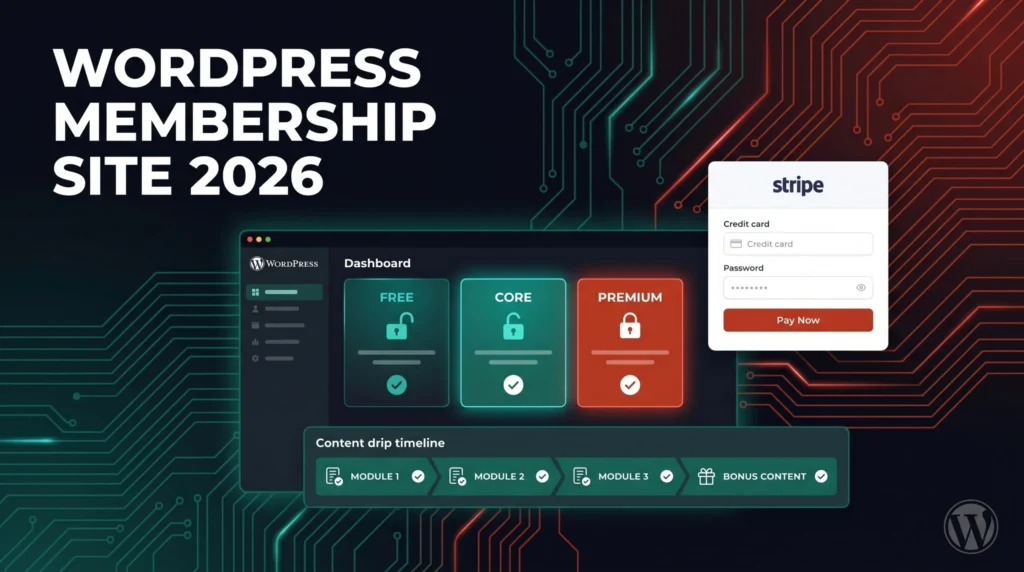
Membership sites are one of the most profitable business models on the web in 2026 — and WordPress is still the dominant platform for building them. The membership site market is projected to be worth $1.5 trillion in 2026, and whether you are a course creator, a newsletter publisher, a software company offering gated documentation, or a freelance developer building for a client, WordPress gives you the flexibility, ownership, and scalability that all-in-one platforms like Kajabi and Teachable simply cannot match.
This guide covers the complete process of building a WordPress membership site from scratch — choosing the right plugin for your specific use case, configuring payment gateways, setting up membership tiers, restricting content, implementing drip content schedules, managing subscribers, and avoiding the mistakes that derail most first-time membership site builds. Every recommendation in this guide comes from hands-on implementation experience.
Why Build Your Membership Site on WordPress?
Before choosing a plugin or writing a line of configuration, it is worth understanding why WordPress remains the right choice for membership sites in 2026 — even with the rise of purpose-built platforms.
- You own everything: On Kajabi or Teachable, your content, your member data, and your community live on someone else’s platform. If the platform changes its pricing, shuts down, or decides to compete with you directly, you have limited recourse. On WordPress, you own the database, the files, and the domain.
- Zero platform fees on revenue: MemberPress Growth and above, Paid Memberships Pro, and Restrict Content Pro all charge 0% in platform fees. On Kajabi, you pay a monthly platform fee regardless of revenue. The difference compounds significantly as your membership grows.
- Unlimited customisation: WordPress gives you full control over every aspect of the member experience — custom registration flows, branded dashboards, integration with any third-party tool, and bespoke access logic that no SaaS platform can replicate without custom development costs.
- The plugin ecosystem is mature: After years of development, WordPress membership plugins in 2026 handle recurring billing, dunning, drip scheduling, content gating, community features, and LMS functionality at a level that rivals dedicated platforms — often at a fraction of the cost.
Step 1: Define Your Membership Site Type Before Choosing a Plugin
The single biggest mistake developers and site owners make when building a WordPress membership site is choosing a plugin before defining what the site actually needs to do. The right plugin depends entirely on your membership model. There are four primary types:
- Content gating site: A blog, publication, or resource library where some or all content is restricted behind a paywall. Examples: premium newsletter archives, members-only articles, gated research reports.
- Online course / LMS site: Structured learning content delivered in a course format with modules, lessons, quizzes, and student progress tracking. Examples: professional training platforms, skill-based courses, certification programmes.
- Community site: A members-only social space with profiles, forums, groups, and direct messaging. Examples: private professional communities, fan clubs, niche interest networks.
- Subscription product site: A WooCommerce-based store where membership unlocks discounts, exclusive products, or recurring physical or digital deliveries.
Most membership sites combine elements from more than one type — but identifying your primary model before choosing a plugin saves hours of reconfiguration and plugin-switching later.
Step 2: Choose the Right Membership Plugin
The WordPress membership plugin market in 2026 is mature and well-differentiated. Here are the leading options and the use cases each one is genuinely best for:
MemberPress — Best for Content Gating and Paywalls
Price: From $199.50/year
MemberPress offers the most granular content protection of any plugin tested. You can gate content by page, post, category, tag, or partial content within a post, and drip it by specific date or days since signup. Combined with mature Stripe and PayPal integration including dunning — failed payment retry logic that meaningfully recovers churned revenue — it is the strongest pure paywall solution available.
- Best for content-heavy sites — blogs, publications, resource libraries — without heavy community requirements
- Corporate and group membership accounts for B2B use cases
- Works seamlessly with LearnDash if you need to add course delivery later
- The MemberPress and LearnDash integration is mature and well-documented in 2026
Paid Memberships Pro (PMPro) — Best Free-First Option with Developer Flexibility
Price: Free core + paid add-ons from $347/year
Paid Memberships Pro standout features include a free core plugin, content dripping, and WordPress multisite support. For developers building membership sites for clients, PMPro is particularly attractive because of its extensive hook and filter system — it is one of the most developer-friendly membership plugins available, making deep customisation straightforward. The free core plugin handles unlimited membership levels, content restriction, Stripe and PayPal integration, and member management — which is sufficient for many projects without any paid add-ons.
- Best for developers who need deep customisation via hooks and filters
- Best free-first option for budget-conscious projects
- Strong multisite support — useful for agency networks and client sites running multiple membership communities
LearnDash — Best for Online Courses and LMS
Price: From $199/year
LearnDash is packed with tools to create an engaging, well-structured membership site with an extensive set of add-ons and integrations. Its drip content feature lets you release lessons at regular intervals or after a student completes a level — which keeps people coming back. The plugin also tracks student progress so you know exactly how your courses are performing. LearnDash is WordPress multisite compatible and is the strongest option when course delivery is the primary business model rather than content gating.
- Best for structured online courses with modules, lessons, quizzes, and certificates
- Pairs naturally with MemberPress or PMPro for billing and access control when you need both LMS and subscription management
- Strong progress tracking and reporting out of the box
BuddyBoss — Best for Community-First Sites
Price: From $299/year
For community-first sites where groups, forums, and social features are central, BuddyBoss Platform is the strongest option, particularly when paired with a free membership plugin like Paid Memberships Pro for billing. BuddyBoss also offers a branded mobile app — the branded BuddyBoss App lets members access gated content, community, and courses from iOS or Android. No other membership plugin for WordPress includes a native branded mobile app.
- Best for private social communities, professional networks, and group coaching platforms
- Pair with PMPro or Restrict Content Pro for billing — BuddyBoss handles the community layer, a dedicated membership plugin handles payments and access
Restrict Content Pro — Best Lightweight Option
Price: From $99/year
Restrict Content Pro supports content dripping and expiration — drip out content over time to keep subscribers interested, or expire content after a certain period. Multiple payment gateways are supported including Stripe, PayPal, and Braintree, plus integrations with popular email marketing services, WooCommerce, LearnDash, and more. For simpler membership sites that need reliable content restriction and billing without complex community or LMS features, Restrict Content Pro is the cleanest, most lightweight option available.
Step 3: Set Up Your Hosting and WordPress Environment
Membership sites have different hosting requirements from standard WordPress sites. They handle user authentication, payment processing, recurring billing events, member database queries, and often significant concurrent user sessions — all of which demand more from your hosting environment.
- Choose managed WordPress hosting: For membership sites, shared hosting is not appropriate. Use a managed WordPress host like Kinsta, WP Engine, or Cloudways that provides PHP 8.2+, server-level caching, automatic backups, and staging environments as standard.
- Ensure PHP 8.2 or higher: All major membership plugins in 2026 require PHP 8.0 as a minimum, with PHP 8.2 or 8.3 recommended for optimal performance and security.
- Set up a staging environment before launch: Test your entire membership flow — registration, payment, content access, drip scheduling, email notifications — on staging before any real money changes hands.
- Install SSL immediately: A membership site that handles payment data absolutely requires HTTPS. Most managed hosts provide free SSL via Let’s Encrypt. Verify your SSL is correctly configured with SSL Labs before launch.
Step 4: Configure Payment Gateways
Payment configuration is where most first-time membership site builds encounter their first serious complications. Getting this right before you launch is significantly easier than fixing it after real members have subscribed.
Stripe — Recommended as Primary Gateway
Stripe is the recommended payment gateway for WordPress membership sites in 2026. All major membership plugins have deep, mature Stripe integrations that support recurring subscriptions, free trials, one-time fees, proration, and dunning. Stripe’s developer dashboard also makes testing straightforward with test card numbers that simulate successful payments, failed payments, and card authentication flows.
// Test Stripe card numbers for staging
// Successful payment: 4242 4242 4242 4242
// Payment requires authentication: 4000 0025 0000 3155
// Payment declined: 4000 0000 0000 0002
// Insufficient funds: 4000 0000 0000 9995
PayPal — Secondary Gateway
PayPal remains worth supporting as a secondary gateway in 2026 — a meaningful percentage of customers prefer PayPal over entering card details directly. Use PayPal Standard or PayPal Express Checkout depending on your plugin’s recommendation. Avoid PayPal’s IPN (Instant Payment Notification) system for new builds — the Webhooks API is more reliable and better supported by modern membership plugins.
Configure Webhooks Correctly
Webhooks are how your payment gateway notifies your membership plugin of events — successful payments, failed renewals, subscription cancellations, and refunds. Misconfigured webhooks are the number one cause of membership access not updating after payment events. After configuring your gateway, test every webhook event type on staging before going live.
Step 5: Create Membership Tiers
Most successful membership sites use a tiered model — typically two or three levels with clearly differentiated value at each price point. A flat single-tier model leaves significant revenue on the table from members who would pay more for additional access.
A practical three-tier structure for most membership sites:
- Free tier: Limited access — one or two pieces of content per month, basic community access if applicable. Exists to convert visitors into subscribers and demonstrate value before asking for payment.
- Core paid tier ($X/month): Full access to the content library, standard community features, new content on the standard release schedule. This should be your primary conversion target.
- Premium tier ($X+/month): Everything in Core plus early access to new content, direct access to the creator or team, exclusive workshops or Q&A sessions, and downloadable resources. Positioned as “maximum value” rather than “more content.”
When configuring tiers in your membership plugin, set up annual billing options alongside monthly — typically priced at a 15–20% discount. Annual subscriptions dramatically reduce churn because the renewal decision only happens once per year rather than monthly.
Step 6: Configure Content Restriction Rules
Content restriction is the technical core of a membership site — it is how WordPress determines which content a logged-in user can access based on their membership level. The specific implementation varies by plugin but the principles are consistent.
In MemberPress, navigate to MemberPress → Rules to create access rules. Each rule defines what content is protected and which membership levels can access it. Common rule patterns:
- Category-level restriction: All posts in the “Premium Content” category are restricted to paid members. New posts added to that category are automatically protected — you do not need to configure each post individually.
- Partial content gating: The first 200 words of a post are visible to everyone; the remainder requires membership. MemberPress handles this with the
[mepr-show]shortcode or the built-in partial content restriction option. - Custom post type restriction: All entries in a custom post type (courses, resources, templates) are restricted to members at or above a specific tier.
- Page restriction: Specific pages — a member dashboard, a private resource library, a community directory — are accessible only to logged-in members.
Always test restriction rules from a logged-out browser session and from test accounts at each membership tier before launching. A misconfigured rule that shows premium content to free users is a revenue leak. A rule that blocks paying members from accessing content they paid for is a support crisis.
Step 7: Set Up Drip Content
Drip content releases gated content to members on a schedule rather than giving them instant access to everything at once. It is one of the most effective tools for reducing churn — members who have content still waiting for them have a reason to stay subscribed.
Two primary drip models work well in practice:
- Days since signup: Content unlocks a set number of days after a member joins. Day 0 unlocks the welcome module. Day 7 unlocks module two. Day 14 unlocks module three. This works well for structured course content where completion order matters.
- Fixed calendar dates: Content unlocks on a specific date regardless of when the member joined. Works well for live cohorts, seasonal content, and event-based memberships where all members experience the same schedule.
Configure drip content in MemberPress under MemberPress → Rules → Edit Rule → Drip/Expiration. In Restrict Content Pro, you can set up drip rules for individual pieces of content or for entire categories, tags, or custom taxonomies — scheduling content by specific date or days since signup.
Step 8: Build Your Member Dashboard and Registration Flow
The member dashboard is the first thing a paying member sees after completing registration. A poorly designed dashboard is one of the most common causes of early churn — members who cannot find what they paid for cancel within the first 30 days.
Your member dashboard should provide at a minimum:
- A clear welcome message with the member’s name and tier level
- Direct links to the most valuable content they can access right now
- A clear content roadmap showing what is coming and when (for drip content schedules)
- Account management links — billing, password change, cancellation — easily accessible so members do not need to contact support for basic account tasks
Most membership plugins generate basic account pages automatically. For a branded, high-converting dashboard, use Elementor or a custom page template with the plugin’s template tags to display member-specific data:
<?php
// Check if current user is a MemberPress member
// at a specific tier
if ( function_exists( 'mepr_current_user_has_access' ) ) {
    $rule_id = 42; // Your MemberPress rule ID
    if ( mepr_current_user_has_access( $rule_id ) ) {
        echo '<div class="premium-content">';
        // Premium content here
        echo '</div>';
    } else {
        echo '<div class="upgrade-prompt">';
        echo '<p>This content is available to Premium members.</p>';
        echo '<a href="' . esc_url( get_permalink( $rule_id ) ) . '">Upgrade Now</a>';
        echo '</div>';
    }
}

// Get current member data with PMPro
if ( function_exists( 'pmpro_getMembershipLevelForUser' ) ) {
    $current_user  = wp_get_current_user();
    $member_level  = pmpro_getMembershipLevelForUser( $current_user->ID );

    if ( $member_level ) {
        echo '<p>Welcome, ' . esc_html( $current_user->display_name ) . '!</p>';
        echo '<p>Your plan: ' . esc_html( $member_level->name ) . '</p>';
    }
}
Step 9: Set Up Email Automation
Email is the highest-converting retention channel for membership sites. At minimum, configure these automated email sequences before launch:
- Welcome email: Sent immediately on registration. Confirms their membership tier, delivers the most important first link (their dashboard or first piece of content), and sets expectations for what they will receive and when.
- Onboarding sequence (days 1–7): Three to five emails that guide new members to the most valuable content, introduce community features, and answer the most common first-week questions. Members who engage in the first seven days have dramatically higher retention rates at 30 and 90 days.
- Failed payment notification: Sent automatically when a recurring payment fails. Include a direct link to update billing details. Configure dunning (automatic retry logic) in Stripe to attempt the charge again before sending a cancellation notice.
- Cancellation email: Sent when a member cancels. Include an exit survey link and a pause option if your plugin supports it — some members cancel because they are temporarily busy, not because they are dissatisfied.
- Renewal reminder: Sent 3–7 days before annual membership renewal to reduce surprise cancellations from members who forgot they subscribed.
Integrate your membership plugin with a dedicated email marketing platform — Mailchimp, ConvertKit, or ActiveCampaign — rather than relying solely on WordPress transactional email. All major membership plugins have native integrations with these platforms.
Step 10: Security and Performance Hardening
A membership site handles more sensitive data than a standard WordPress site — payment information, personal profiles, subscription history. Security cannot be an afterthought.
- Force HTTPS sitewide: Every page of a membership site must serve over HTTPS. Use the Really Simple SSL plugin to redirect all HTTP traffic and fix mixed content warnings.
- Enable two-factor authentication for admin accounts: Use Wordfence Login Security or WP 2FA to add 2FA to all administrator and editor accounts.
- Limit login attempts: Membership sites are a higher-value target for credential stuffing attacks because they hold payment-linked accounts. Configure login attempt limiting in Wordfence.
- Use a caching solution that excludes member pages: WP Rocket automatically excludes cart, checkout, and account pages from caching. Manually exclude your membership plugin’s pages (dashboard, login, registration, account) from any caching layer. Cached member pages that show another user’s account data are a serious privacy incident.
- Daily off-site backups: Configure UpdraftPlus to back up daily to an off-site destination. For WooCommerce-based membership sites, increase the database backup frequency to every four hours.
Common Mistakes to Avoid
- Choosing a plugin before defining the use case: MemberPress is excellent for content gating. It is not the right choice for a community-first site. LearnDash is excellent for courses. It is overkill for a simple newsletter paywall. Match the plugin to the use case, not the other way around.
- Not testing the full payment flow on staging: Test every payment scenario — successful payment, failed card, 3D Secure authentication, free trial expiry, subscription cancellation — before accepting real payments.
- Caching member pages: Always exclude login, registration, account, and dashboard pages from your caching plugin. This is the most common technical support issue on membership sites and is trivially preventable.
- No dunning configuration: Failed payments are the leading cause of involuntary churn on subscription sites. Configure Stripe’s Smart Retries and your membership plugin’s dunning settings to automatically retry failed charges before cancelling access.
- No offboarding flow: Members who cancel are a recovery opportunity if you have an exit survey, a pause option, and a win-back email sequence. Most first-time builds skip this entirely and leave easy re-activation revenue uncaptured.
Conclusion: WordPress Is Still the Best Platform for Membership Sites in 2026
Building a membership site on WordPress requires more initial setup than an all-in-one SaaS platform — but it gives you complete ownership, zero platform fees on revenue, unlimited customisation, and a mature plugin ecosystem that handles every aspect of membership management at a professional level.
The key decisions are choosing the right plugin for your specific membership model, configuring payments and webhooks correctly before launch, setting up content restriction rules that protect your revenue without frustrating paying members, and building an email automation stack that drives retention from day one.
At ArshadWebStudio, we build custom WordPress membership sites for clients who need a professional, scalable platform that they fully own. From plugin selection and payment configuration to custom member dashboards and drip content architecture, we handle the full build. If you need a WordPress membership site built properly, get in touch today.
About the Author
Arshad Shah is a freelance WordPress and Shopify developer at arshadwebstudio.com, specialising in custom WordPress development, WooCommerce, membership site architecture, and Moodle LMS platforms. He builds fast, secure, and scalable membership sites for clients worldwide.
Comments
No comments yet. Be the first to share your thoughts!
Leave a Comment