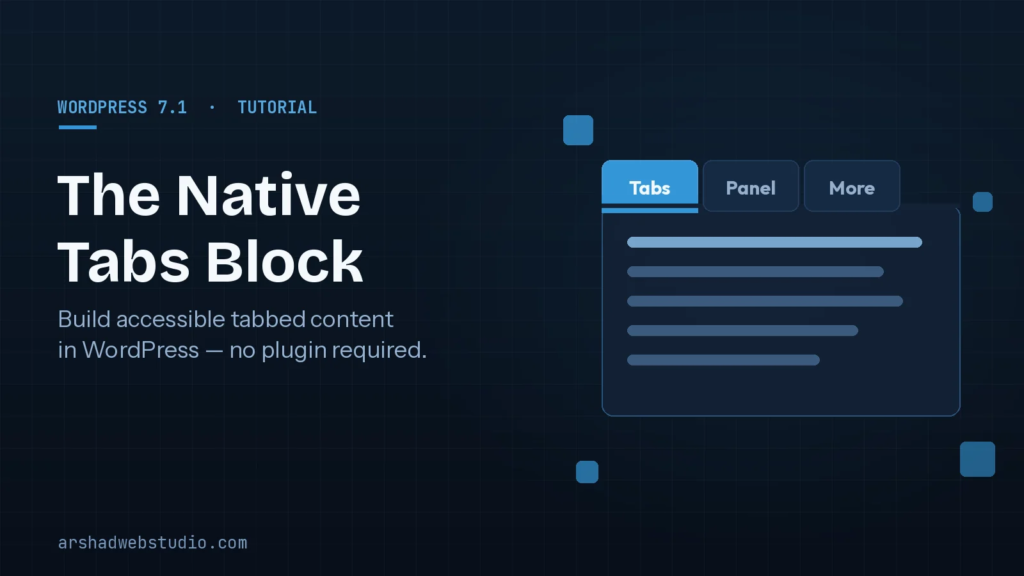
For years, adding tabbed content to a WordPress site meant one of three things: reaching for a page builder, installing a dedicated tabs plugin, or dropping in a block of custom JavaScript and hoping it stayed accessible. WordPress 7.1 changes that. The release ships a native Tabs block in core, and after building a few client sections with it, I can tell you it takes a real pain point out of my workflow.
In this guide I will walk through what the new Tabs block does, how I use it on production sites, where it beats a plugin, and the accessibility and styling details worth knowing before you rely on it. If you want the wider picture of this release first, I covered the rest of it in my hands-on with the WordPress 7.1 beta.
Why a native Tabs block matters
Tabbed layouts are everywhere: product specs, FAQs, pricing comparisons, and the “Description, Reviews, Shipping” panels on a shop page. Until now, every one of those meant adding a dependency. Plugins come with their own CSS, their own markup quirks, and their own update cycle. When a plugin gets abandoned or clashes with a theme update, that tabbed section is often the first thing to break.
Having tabs in core solves the two problems I care about most as a developer: longevity and consistency. The block uses standard WordPress markup, inherits your theme styles, and gets maintained alongside the editor itself. That is one less plugin to audit and update. I am fairly ruthless about dependencies anyway, which I get into in my rundown of the plugins I actually keep on developer sites.
How the Tabs block works
You will find it in the block inserter under “Tabs”, or type /tabs in the editor. Insert it and you get a tab strip across the top with individual tab panels underneath. Each panel is its own container, so you can nest almost anything inside it: paragraphs, images, columns, a Group block, buttons, or a table. The official WordPress 7.1 documentation lists it alongside the other new blocks in this release.
Adding and naming tabs
Every tab has an editable label and its own panel. Click the plus at the end of the tab strip to add another, and use the block toolbar to reorder or remove tabs. Keep labels short, one or two words, because long labels wrap awkwardly on mobile.
Setting the default open tab
In the block settings sidebar you can choose which tab is active on page load. For an FAQ I usually leave the first tab open. For a product section I set “Description” as the default so the most important content shows without a click.
Responsive behavior
This is where WordPress 7.1 is strong. Because the release also added viewport-specific styling, you can adjust how the tab strip behaves on tablet and mobile right in the editor. On narrow screens the tabs can stack instead of squeezing into a cramped horizontal row, which is exactly the kind of thing I used to fix with hand-written media queries.
Accessibility is built in
This is the part I am most glad about. A lot of the DIY tab solutions I inherit from other developers are inaccessible, with no keyboard support, missing ARIA roles, and focus that gets trapped or lost. The core Tabs block follows the established WAI-ARIA tabs pattern out of the box:
- The tab strip uses the correct tablist, tab, and tabpanel roles.
- Arrow keys move between tabs, and Enter or Space activates the focused tab.
- Focus states are visible, and each panel is properly tied to its tab.
Getting this right by hand is fiddly, so having it handled in core is a real win for anyone who cares about WCAG compliance, which in 2026 should be all of us.
Styling the block to match your brand
Out of the box the Tabs block picks up your theme colors and typography. From there you have a few layers of control. In the editor sidebar you can set colors, borders, and spacing for the tabs and panels. For site-wide consistency I define the styling once in theme.json so every Tabs block on the site matches without me touching individual pages.
A few styling tips from real projects:
- Give active tabs a clear visual state. A subtle underline or background shift makes it obvious which panel is open. Do not rely on color alone; pair it with weight or a border so it stays accessible.
- Mind the spacing on mobile. Tap targets should be comfortably large, so I bump the vertical padding on tab labels at the mobile viewport.
- Keep panels similar in height where you can. Very different content lengths between tabs make the page jump when users switch, and a minimum height smooths that out.
When I still reach for something else
The native block covers most cases, but it is not a total replacement for every tab plugin. If a client needs deep-linking to a specific tab by URL, complex conditional logic, or dynamic tabs populated from a custom post type, a purpose-built plugin or a custom block still makes sense. For the everyday “put this content behind tabs” request, though, I now default to core.
One honest caveat: the Tabs block needs WordPress 7.1. If you are running a site that cannot update yet, because a critical plugin or theme has not been tested against 7.1, you will need to wait or test carefully in staging first. I run the update on a staging copy, click through the key templates, and check the tabbed sections before pushing live. That is the same cautious process I use in my safe-update playbook.
How I would migrate existing tabs
If you already have shortcode or plugin-based tabs, there is no need to rip them all out at once. My approach is incremental:
- Update to 7.1 on staging and confirm nothing else breaks.
- Rebuild one high-traffic tabbed section with the native block and compare it side by side.
- Once you are happy, migrate the rest over time and remove the old plugin only after every instance is replaced.
Doing it gradually means you are never left with a half-broken page, and you can watch how the native block performs with your real content and theme. Because the markup is lean, it also tends to be kinder to your Core Web Vitals than a script-heavy plugin.
The bottom line
The Tabs block is a small feature with an outsized effect on how I build. It removes a dependency, ships with accessibility done right, and fits neatly into the responsive-styling improvements that make WordPress 7.1 a strong release. For most sites it means one fewer plugin to worry about and one more thing that just works after a core update.
If you are already on 7.1, spin up a test page and rebuild your next tabbed section with it. I think you will find, like I did, that it is the version of tabs WordPress should have shipped years ago. And if you want a hand updating your site or migrating your existing tabbed layouts safely, that is the kind of work I do, so feel free to get in touch.
Comments
No comments yet. Be the first to share your thoughts!
Leave a Comment